Installation & Configuration Guide
Installation & Configuration
Get ERP Commander up and running in minutes. Follow these steps to install, configure, and connect to your Oracle ERP Cloud instance.
1. System Requirements

- Operating System: Windows 10 or later (64-bit)
- Microsoft Excel: 2016 or later (required for data download/upload features)
- Internet Connection: Required for Oracle ERP Cloud connectivity
- Oracle Account: Valid Oracle ERP Cloud credentials with appropriate role access
2. Installation
- Download the ERP Commander installer from the Download page
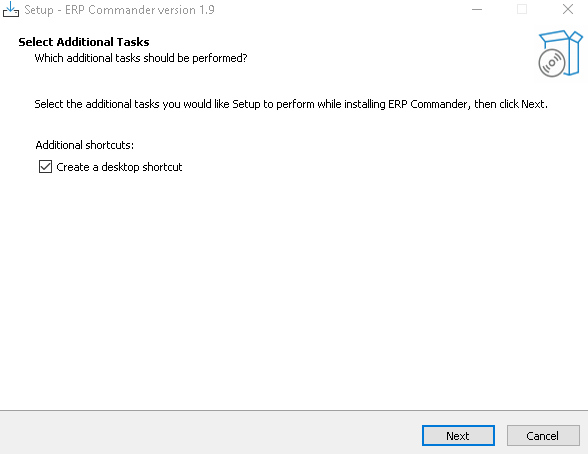
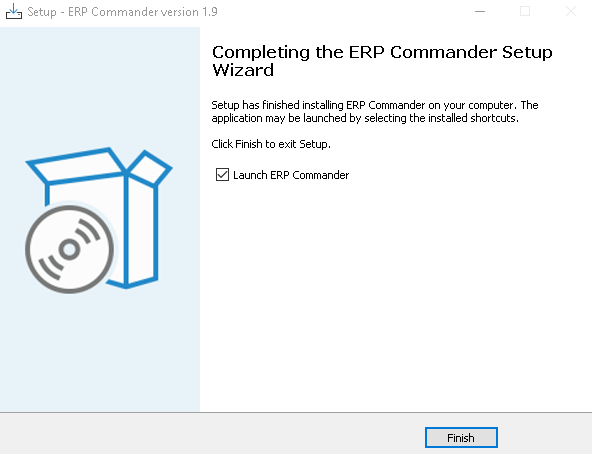
- Run the installer and follow the on-screen instructions
- Launch ERP Commander from your desktop or Start Menu
- Enter your licence key when prompted (or start a trial)
3. Language Configuration
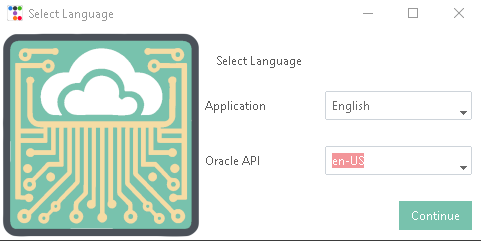

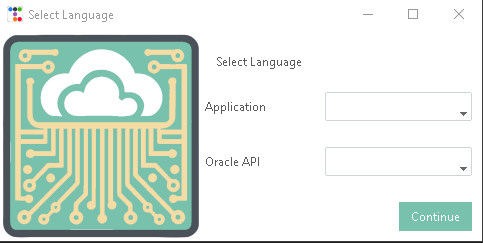
ERP Commander supports two independent language settings:
- Display Language: The language of the ERP Commander interface (English or French)
- API Language: The language used for Oracle REST API requests. We recommend
en-USfor API calls, as most Oracle documentation and error messages are in English.
You can change these at any time from the Settings panel.
4. Oracle ERP Cloud Connection Setup
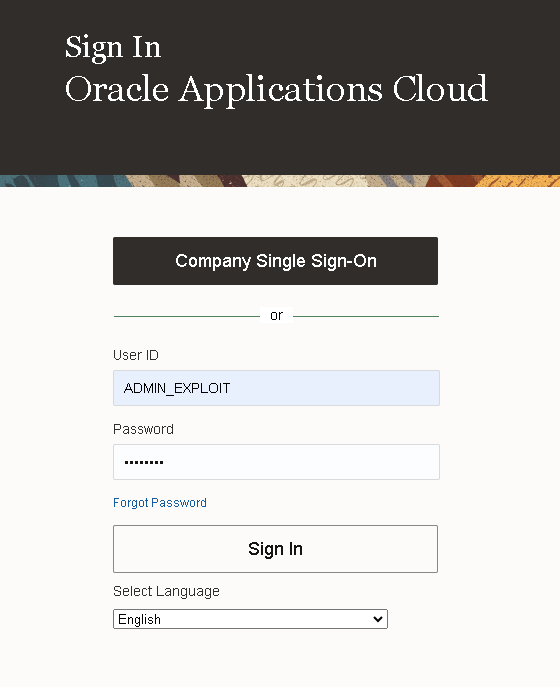

To connect ERP Commander to your Oracle ERP Cloud instance, you will need:
- Instance URL: Your Oracle ERP Cloud base URL (e.g.
https://your-instance.fa.oraclecloud.com) - Username: Your Oracle ERP Cloud username
- Password: Your Oracle ERP Cloud password
Credentials are stored locally on your machine and never transmitted to LOGIC FACTORY servers.
5. Proxy Setup (Optional)



If your organisation uses a proxy for outbound connections, configure it in the Settings panel:
- Proxy URL: The proxy server address (e.g.
http://proxy.company.com:8080) - Proxy Credentials: Username and password if the proxy requires authentication
Leave these fields empty if you have a direct internet connection.