First Steps
First Steps
Learn the basics of ERP Commander in a few minutes. This guide walks you through the interface, template management, and your first data operations.
1. Introduction to the Interface
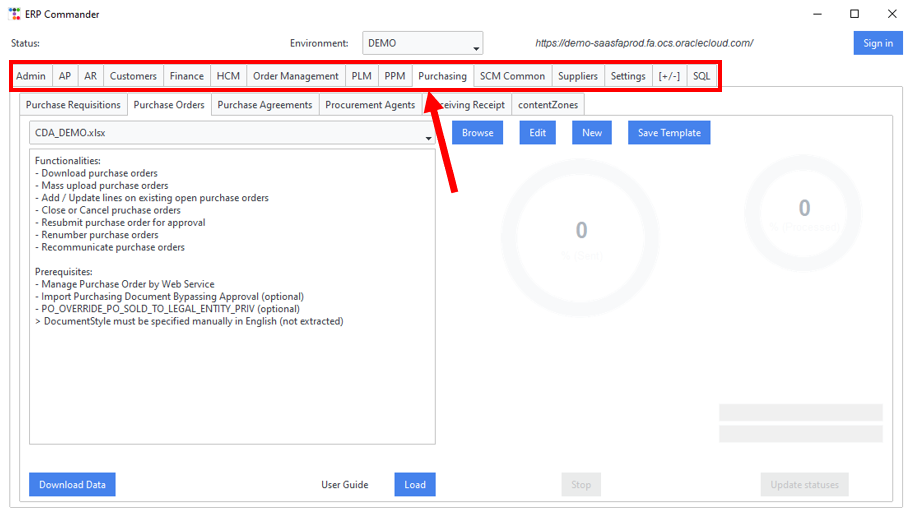
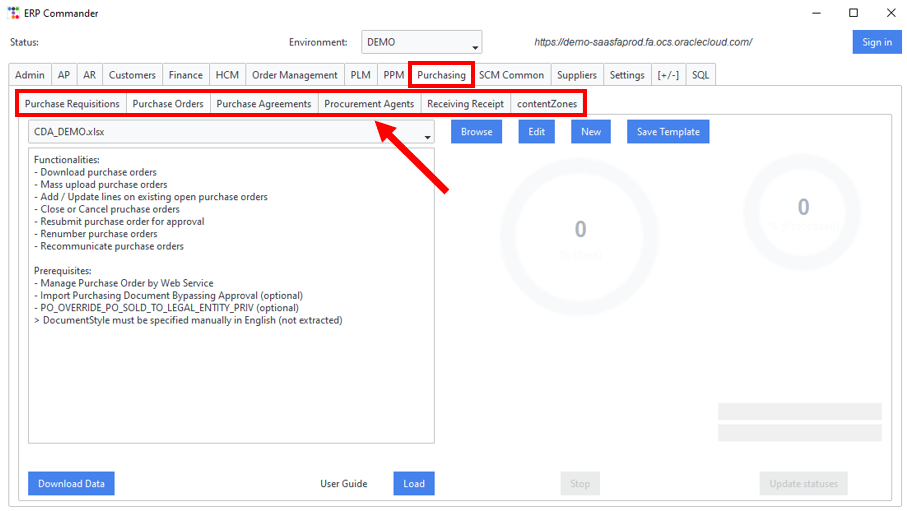
ERP Commander is organised around three main concepts:
- Modules: Each Oracle ERP Cloud functional area (Purchasing, Payables, Finance, etc.) is a module. Select a module to see its available operations.
- Functions: Within each module, functions represent the business objects you can manipulate (purchase orders, suppliers, invoices, etc.).
- Actions: For each function, you can perform actions such as Download to Excel, Upload from Excel, or View Records.
2. Template Management
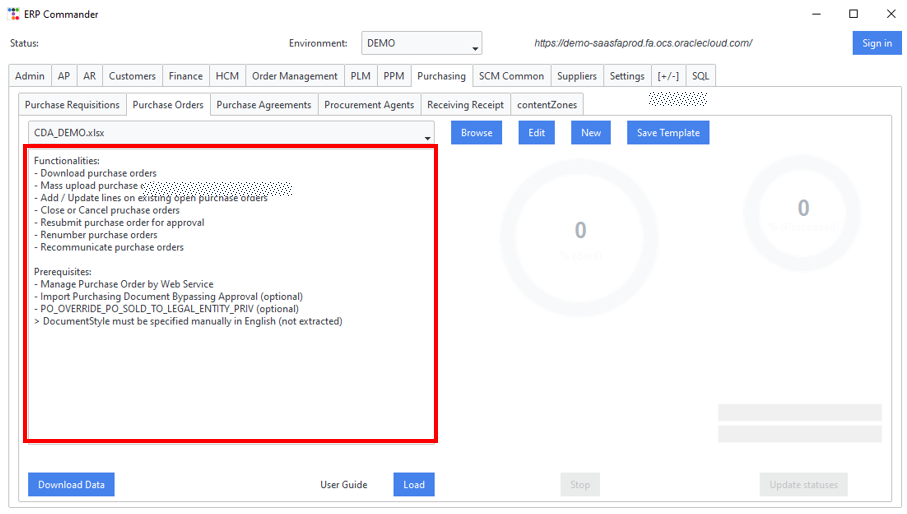
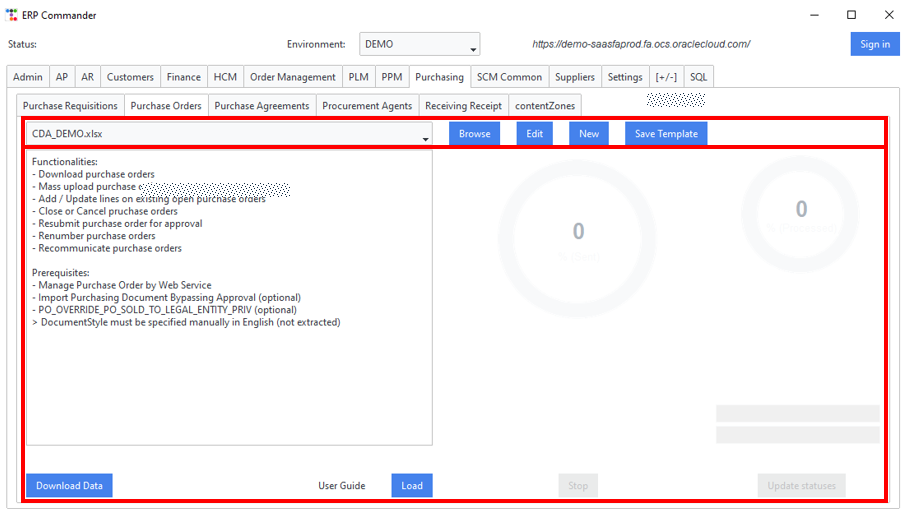
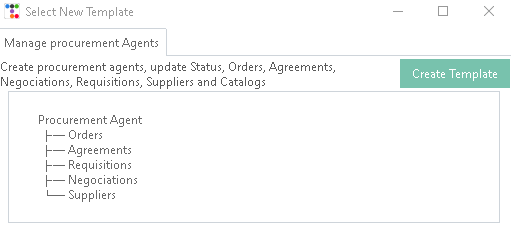
Templates are the heart of ERP Commander. A template defines which columns to download, their order, and formatting rules. Templates save you time by remembering your preferred layout for each business object.
You can:
- Browse: View existing templates for each module and function
- Create New: Build a template from scratch by selecting the columns you need
- Edit: Modify an existing template to add, remove or reorder columns
- Save: Save your template for reuse in future sessions
3. Creating a New Template
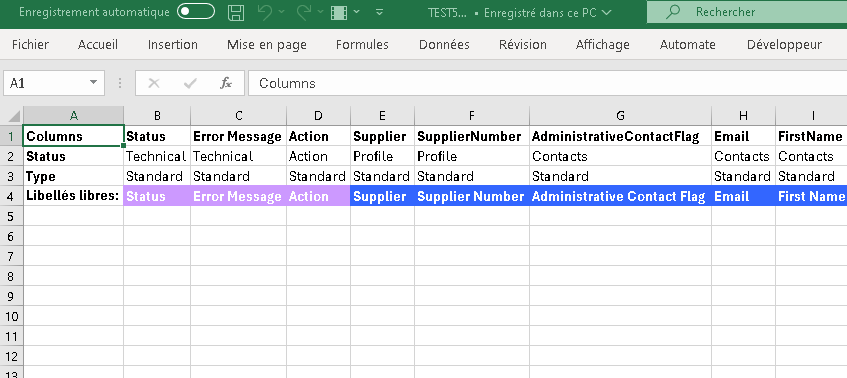
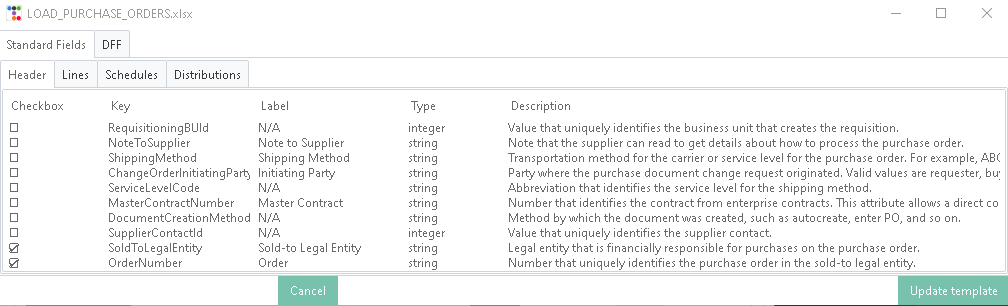
- Select the module and function you want to work with
- Click "New Template" to open the template builder
- Select the columns you want to include from the available fields
- Drag and drop columns to set the desired order
- Save the template with a descriptive name
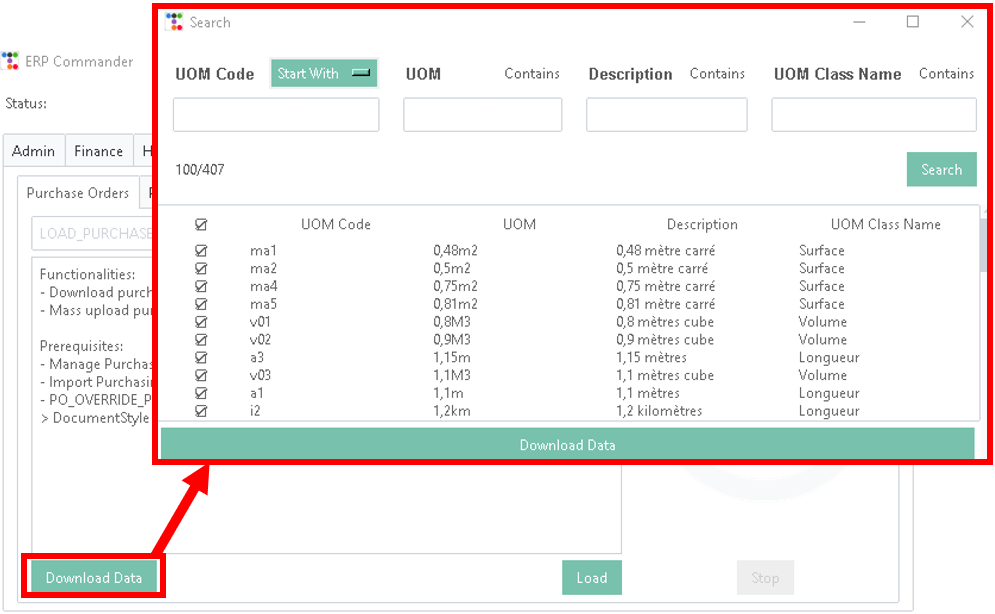
4. Downloading Data from Oracle to Excel
- Select a module and function
- Choose or create a template
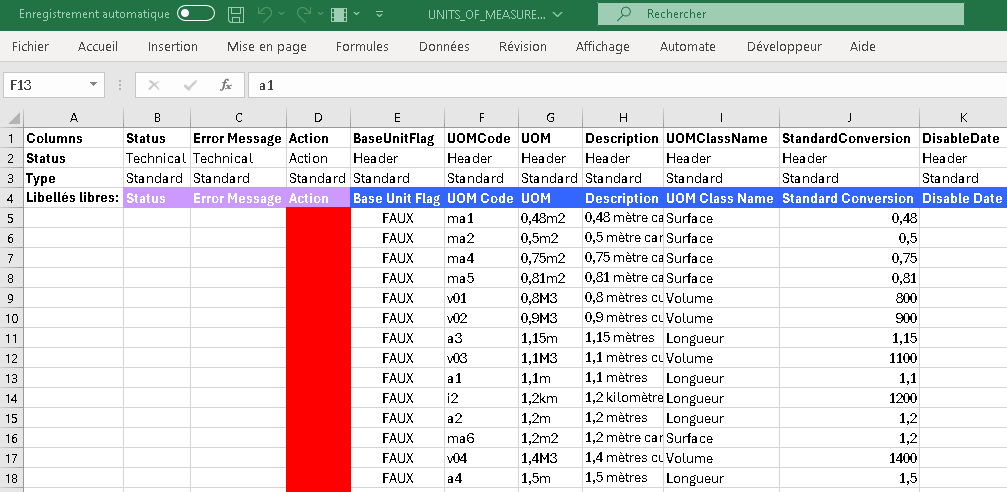
- Click "Download" — ERP Commander queries Oracle ERP Cloud and opens the results in Excel
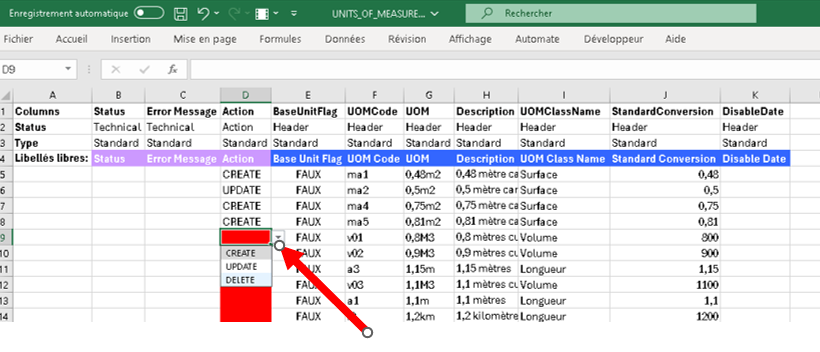
- Edit the data in Excel as needed
5. Uploading Data from Excel to Oracle
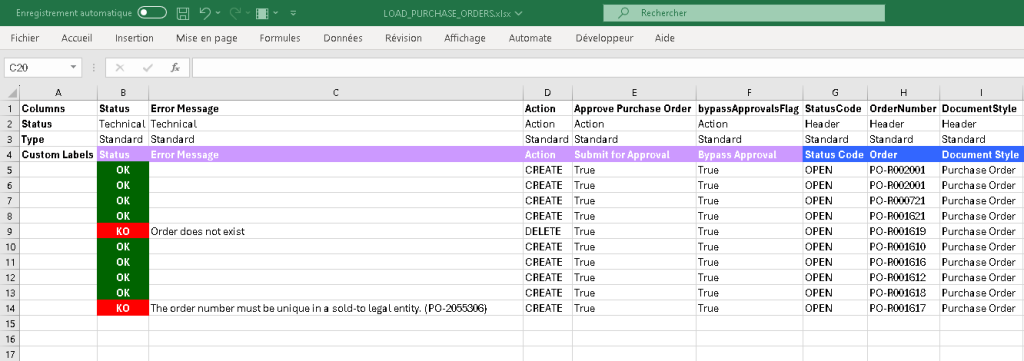
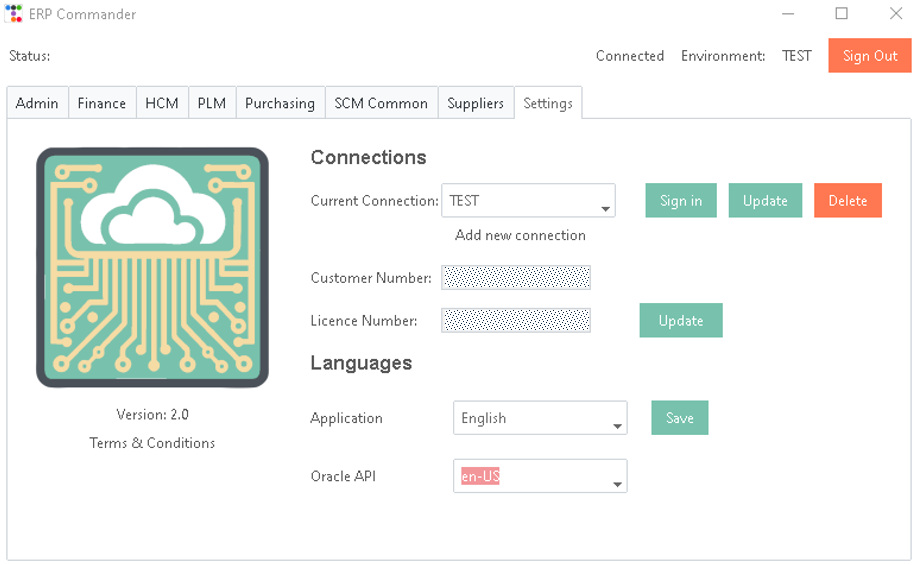
- Open the Excel file containing your prepared data
- Select the corresponding module and function in ERP Commander
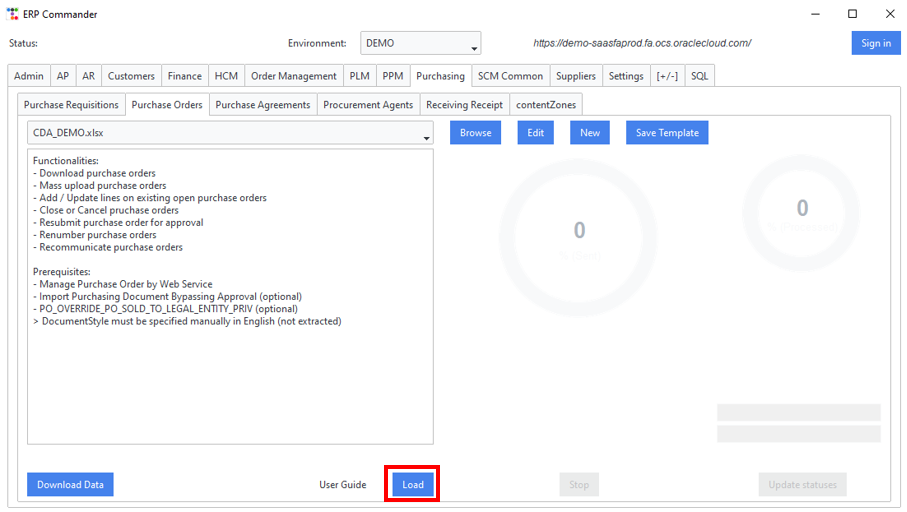
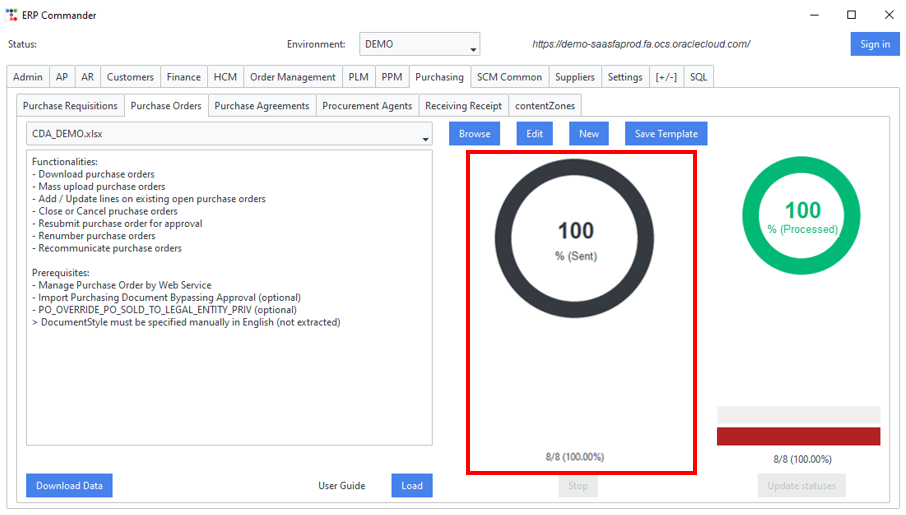
- Click "Upload" — ERP Commander validates and sends the data to Oracle ERP Cloud
- Review the upload report for any errors or warnings